Turn Yourself into a Cartoon: Face, Selfie or Friends (2026)
Turn yourself into a cartoon from a selfie or a one-line description: the steps, group photos, the cartoon face reveal, face ideas and consent tips.
There are two ways to turn yourself into a cartoon on GenCartoon, and both start free. Upload a selfie to cartoon yourself as a still image that keeps your face (your first conversion is free), or type a one-line description of yourself into the cartoon maker and get a 4-second animated clip (free to start). This guide covers the selfie route, group photos, the cartoon face reveal, face ideas for when you'd rather not use your own, and the one rule for cartooning anyone else: ask first.
Two ways to create yourself as a cartoon
1. Face to cartoon AI: upload a photo
Photo to Cartoon takes a photo and hands back a cartoon image (not a video) that keeps your face, pose and background. With no style note it draws vibrant 2D with bold, clean outlines and flat cel-shaded colors; name a style and it follows that instead. The first conversion is free, and paid plans include more (All in One is $29.99 a month or $99 a year). This is the route when you want people to recognize you.
2. Describe yourself and get a moving clip
The text route skips the photo. Type something like "a woman with curly red hair and round glasses, laughing at her phone in a sunny kitchen, 3D cartoon style" and about a minute later you have a 4-second vertical clip at 480p, with sound and a small watermark. There's no exact likeness, because the model never saw your face, but you get motion, and motion is what short-form feeds reward. Paid plans add 6- and 8-second clips, HD 720p and no watermark.
Photo when you want a recognizable you; text when you want a moving avatar. Many people combine them: cartoonize a selfie to see which style suits your face, then describe that look in a text prompt. The step-by-step photo to cartoon guide goes deeper on the photo side.
How to make a cartoon face from a selfie, step by step
- Pick the right photo. Front-lit, face filling roughly a third of the frame, both eyes visible, a background that isn't busier than you are. Skip sunglasses, heavy filters and motion blur.
- Open Photo to Cartoon and add the photo. JPG, PNG or WebP up to 10 MB, straight from your camera roll. You sign in with Google or an emailed code; no password, no card.
- Pick a style or write your own note. The one-tap suggestions are Pixar-style 3D cartoon, Classic Saturday-morning cartoon, Anime style, Comic-book ink and halftone, and Watercolor storybook. You can also type your own, such as "flat vector cartoon, thick outlines, pastel palette."
- Click Cartoonify my photo. It usually takes under a minute.
- Check the anchors, then download. If it dropped your glasses or drifted your hair color, name them in the next try: "keep the round tortoiseshell glasses and the gray streak in the hair." Every try is a new conversion (one free, more on paid plans), so put the anchors in the note from the start.
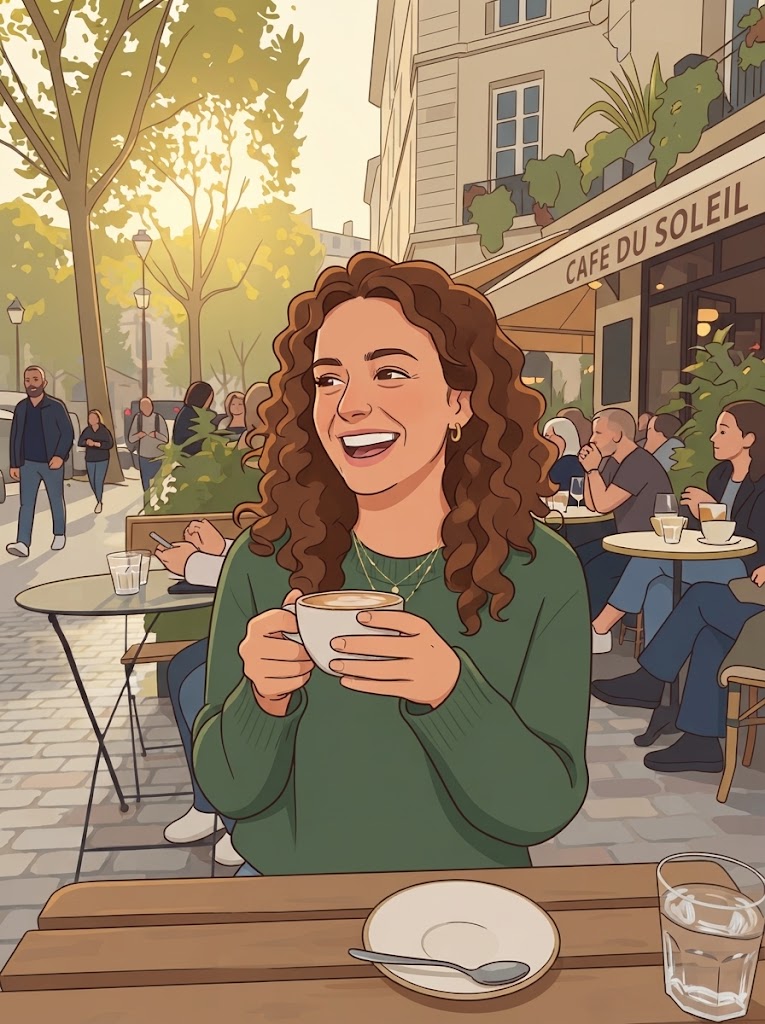
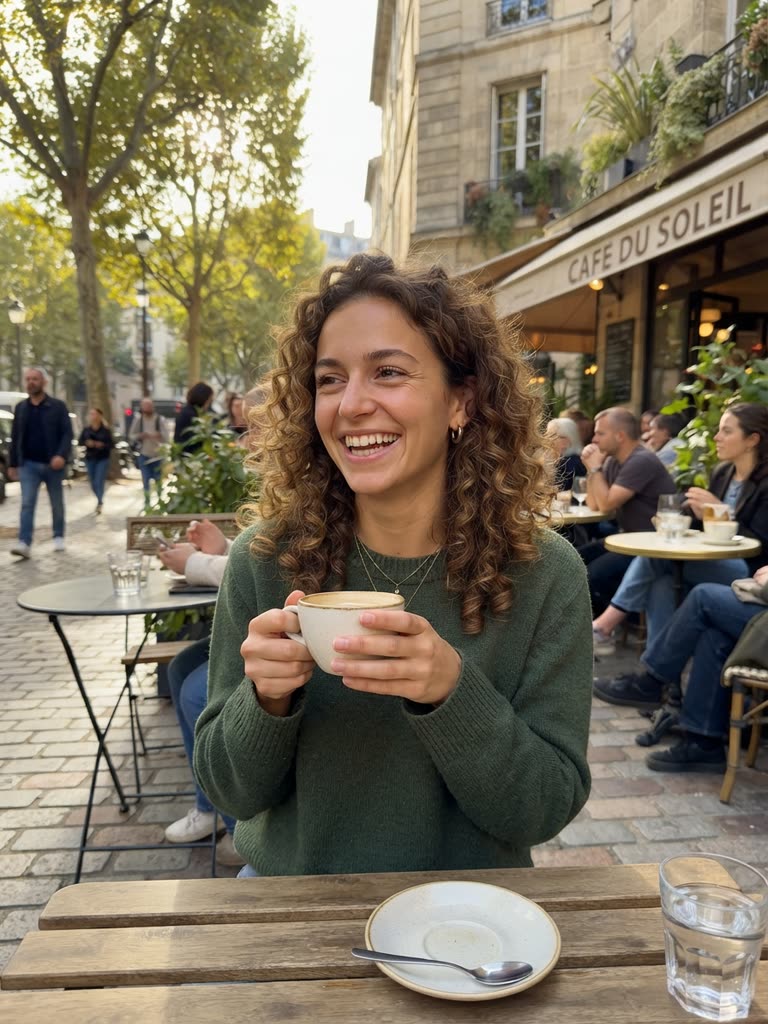
Drag to compare
Turn a person into a cartoon without losing the likeness
What carries a likeness in a cartoon isn't skin texture. It's silhouette and a handful of anchors: hair shape and color, face shape, eyebrows, glasses, facial hair, and one signature item such as a beanie, hoop earrings or a particular jacket. Ask any tool to "turn my face into a cartoon" and it keeps what's visually loud and simplifies what's subtle, so name the anchors in your style note.
Style matters too: Pixar-style 3D and comic-book ink keep the most facial structure, while anime and Saturday-morning styles simplify faces, so the likeness rides on hair and accessories. Crop tighter before uploading so the face gets more of the model's attention, and for a series of posts use the same source photo and style note each time. The guide to creating cartoon faces in AI has more prompt patterns for faces and expressions.
Turn people into cartoons: friends, couples and group photos
Group photos work, with caveats. Two or three people close together, all facing the camera, cartoonize well. Six people in a wide shot means each face is a few dozen pixels, and there's little for the model to hold on to. You have two options:
- Cartoonize the group shot as is. Best for a fun poster or a group-chat icon, where the vibe matters more than each face.
- Cartoonize each person from a solo photo. The higher-quality path. On a paid plan, each friend can also become a Studio character and star in a short series (see the last section).
The cartoon face reveal format
If you've scrolled past clips where a cartoon face appears first and then cuts to the real person, that's the cartoon face reveal. Viewers stay to see how close the cartoon got. The recipe:
- Cartoonize a selfie. On a paid plan, try two or three styles so you have a mini-sequence.
- Optional: generate a 4-second clip of your cartoon self doing something small. Describe the look you got from the still ("woman with a gray streak, round glasses, Pixar-style 3D, waving at the camera") and generate it from text.
- Assemble in your phone's editor. Cartoon for two to three seconds, hard cut to the real photo or your face on camera, then a caption along the lines of "asked AI to turn my face into a cartoon, here's the result."
Free 480p is fine for a phone-screen reveal. If the clip will sit next to camera footage, render it in HD 720p on a paid plan. The AI cartoon trend guide covers the other formats people post: before/after, couples, pets and family versions.
Random cartoon face generator: ideas when you don't want to use your own face
Sometimes you want a mascot, a profile picture that isn't your real face, or a character for a story. GenCartoon has no dedicated random-face button, but the text route does the job: describe a face in one line and you get a fresh one every time. Some starting points:
- "An elderly man with a white walrus mustache, tiny round spectacles and a knitted green cap, comic-book ink style"
- "A teenage girl with a purple undercut, freckles and a gap-toothed grin, anime style"
- "A nervous accountant with a pencil behind his ear and a coffee-stained tie, Saturday-morning cartoon"
- "A grandmother astronaut with silver braids floating in zero gravity, Pixar-style 3D"
- "A street-food vendor with a huge laugh, a gold tooth and a paper hat, watercolor storybook"
Swap one detail at a time (the hat, the hair, the expression) and you'll build a cast quickly. When one clicks, describe it the same way every time. For more starting points, the free cartoon idea generator suggests a character, setting, goal and twist with no account needed; lock the parts you like and reroll the rest.
Consent: when you turn someone into a cartoon who isn't you
A cartoon version of a person is still a picture of that person. Before you turn someone into a cartoon and post it:
- Ask first. It takes ten seconds, and most people say yes.
- Keep children out of public posts. Never upload photos of children to public posts, cartoon or not; a cartoon of a child is for the family.
- Don't imply endorsement. Cartooning a public figure for commentary is one thing; putting words in their cartoon mouth that suggest they back your product is another.
- Keep it kind. Cartoon styles exaggerate. Skip notes that push an unflattering feature on someone who didn't ask for a caricature.
- Delete on request. If a friend later asks you to take it down, do it.
Cartoon videos you make on GenCartoon are public by default and can appear in the gallery (free cartoons always are); on a paid plan, deleting a cartoon from My Cartoons removes it from the gallery and every public page.
From one cartoon face to a whole show
Once you have a cartoon version of yourself you like, the next step is putting it in motion across more than one clip. On a paid plan, Studio 2.0 is built for that: you pitch an idea, the Story Agent writes a cast and a scene-by-scene plan you can edit, each character is drawn once as a reference sheet (yours can be based on your photo), then the scenes are animated and joined into an episode film, with a spoken line in each scene. Whether it's a series where cartoon-you reviews snacks or a short movie starring your friend group, the AI cartoon series guide walks through the setup.
FAQ
Is it free to turn yourself into a cartoon on GenCartoon?
Yes, to start: your first photo-to-cartoon conversion is free, and every account can make a free cartoon. The free cartoon is a 4-second, 480p clip made from a text description, with a small watermark. Paid plans add more conversions, HD 720p clips and the Studio; All in One is $29.99 a month or $99 a year.
Can I turn a video of myself into a cartoon?
No, GenCartoon doesn't convert existing videos into cartoons. The workaround: take a still frame from your video, cartoonize it with Photo to Cartoon, then describe that cartoon look in a text prompt to get an animated clip. You get a moving cartoon of yourself, not a frame-by-frame conversion of your footage.
Why doesn't my cartoon look like me?
Usually the photo was dark, your face was small in the frame, or the style simplified it. Retry with a tighter crop, a more structured style such as Pixar-style 3D, and a note that names what to keep, like your glasses or a gray streak. Anime and Saturday-morning styles simplify faces the most.
Can I turn a group photo of my friends into a cartoon?
Yes; it works best with two or three people standing close together and facing the camera. For bigger groups, cartoonize each person from a solo photo; on a paid plan, each friend can become a Studio character whose reference sheet keeps the likeness. Ask everyone before you post the result anywhere public.
Which style keeps the most likeness?
Pixar-style 3D and comic-book ink tend to keep the most facial structure. Anime and Saturday-morning styles are more stylized, so the likeness leans on hair, glasses and accessories. On a paid plan you can run the same photo in two styles and keep the one your friends recognize faster.
GenCartoon Team
GenCartoon Team makes AI cartoons and writes about characters, scenes and animation workflows.
Make your own cartoon
Describe an idea in one sentence and watch it animate: a free 4-second cartoon to start, no card needed. Paid plans make clips of up to 8 seconds in HD 720p, without the watermark.
Cartoonize my photo freeRelated guides
How to Generate AI Cartoon Images (2026 Guide)
How to generate AI cartoon images: from a photo or a text prompt, the styles and prompt words that work, and which tools make images and which make videos.
ReadAI Cartoon Show Generator: Create Your Own Cartoon Show
How to use an AI cartoon show generator: a premise, a cast, a format you can repeat, a random show idea table, and characters that stay on-model.
ReadScript to Video AI: Turn a Script Into a Cartoon (2026)
Script to video AI for cartoons: format a script for a model, split it into one-action scenes, render them with a fixed cast, and what is really free.
Read